CarviLabs
CA320T X-Plane
Install Instructions
Follow these quick steps to install the model and scripts.
Installation Steps (X-Plane 11)
- Download the model package from the official CarviLabs release channel.
- Unzip all files from the downloaded archive.
- Copy the Aircraft folder and the Resources folder into your X-Plane root directory.
The Aircraft folder contains the flight model, and Resources contains the scripts used by the model.
X-Plane 11 Lua Scripts
For X-Plane 11, the package includes 4 Lua scripts:
- disable_redout.lua: Disables blackout/redout effects during high G-force maneuvers. This is useful for FPV flying where you do not physically feel G-forces.
- arduplane_osd.lua: Shows a default ArduPlane-style OSD for a more realistic FPV/simulator experience.
- flylog.lua: Logs total flight time and creates a Logs folder in the root directory. It writes a simple CSV so you can always track your flight time.
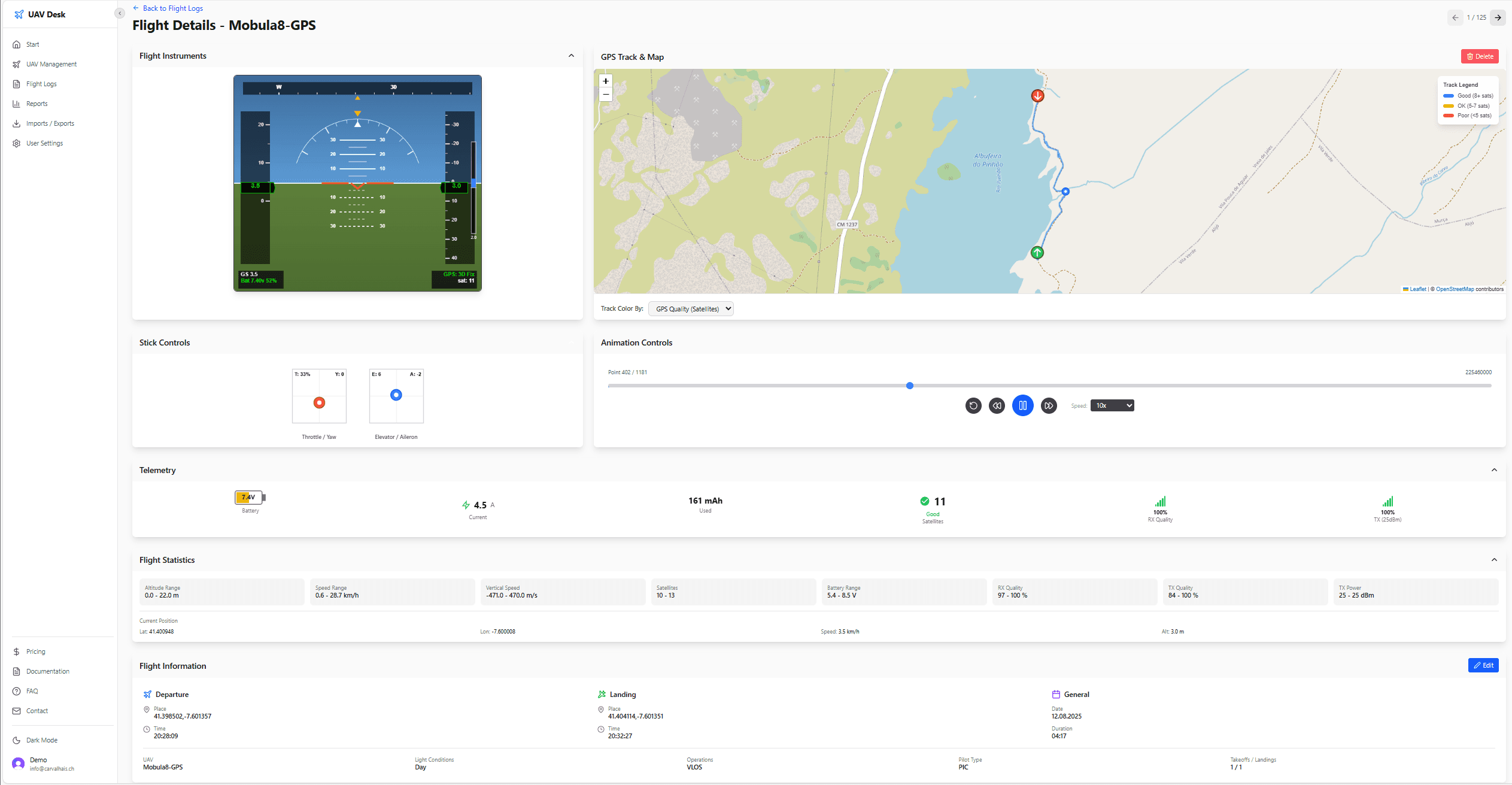
- tellog.lua: Records additional data such as stick inputs and GPS route. You can visualize this data in uavdesk.app.
Required scripts: disable_redout.lua and arduplane_osd.lua are core parts of the flight model and should stay enabled.
Optional scripts: flylog.lua and tellog.lua are optional and do not need to be installed to fly the model.
UAVDesk Upload Note
If you upload logs to uavdesk.app, you must register the UAV as ca320t_sim.
Use this exact name (matching the model name in flylog.csv) so the software can automatically import logs through the EdgeTX importer.
Flight Details Preview
This preview shows how the telemetry and map replay can look in UAVDesk: