 CarviLabs
CA320T X-Plane
SITL Mission Planner Configuration
Mission Planner setup for SITL workflows shared with the CA320T flight platform.
SITL Mission Planner Setup (X-Plane)
Follow this workflow to connect Mission Planner with X-Plane SITL for the CA320 platform. The sequence below is written for CA320T simulation, but the same flow is also valid for the shared CA320 setup.
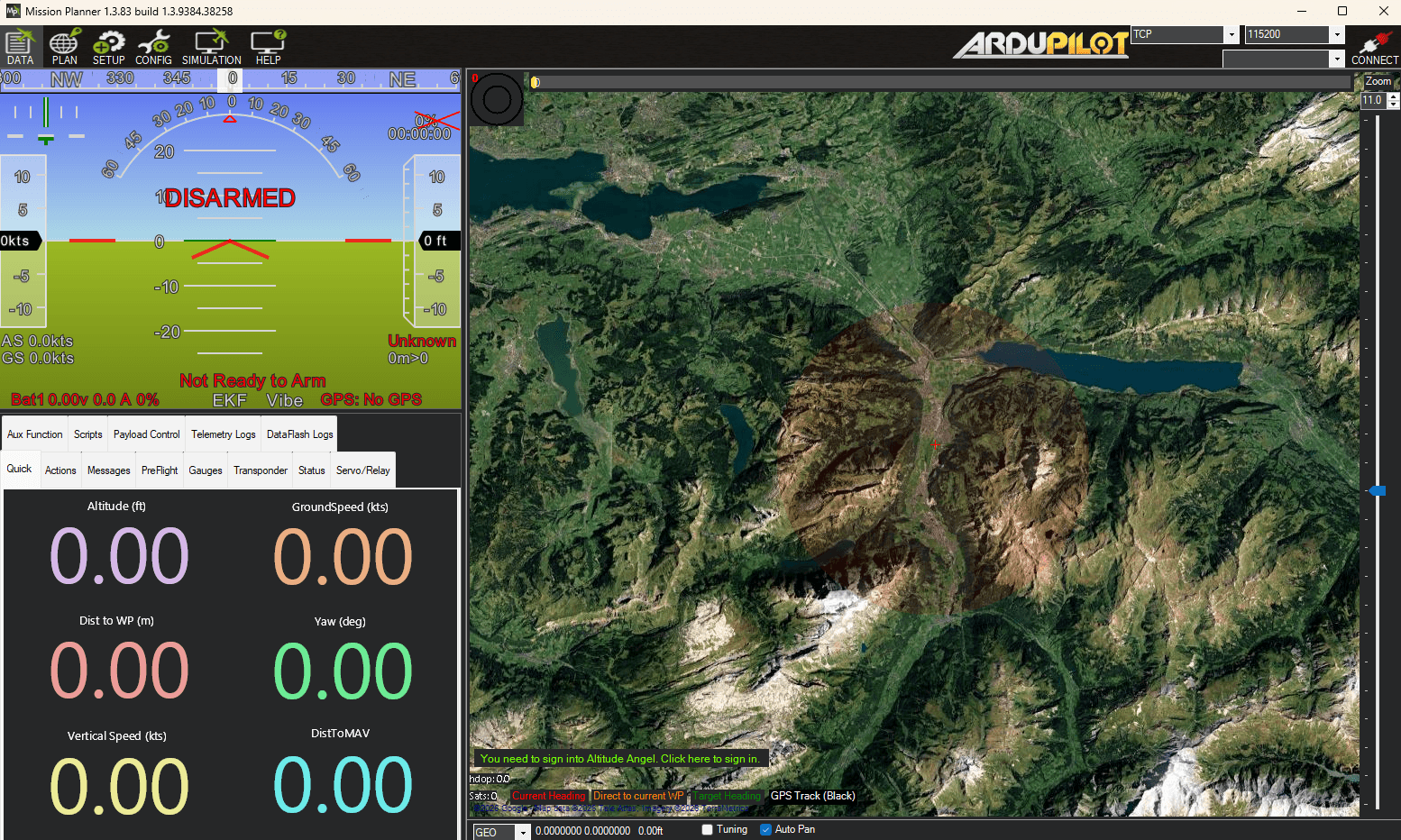
- Download and install Mission Planner from ardupilot.org, then launch it.
- If you are using ca320t-sim, copy x-plane_plane.json from your z_Ardupilot/SITL zip folder to C:/Users/%username%/Documents/Mission Planner/sitl/xplane. If you use a different or default aircraft model, skip this step.
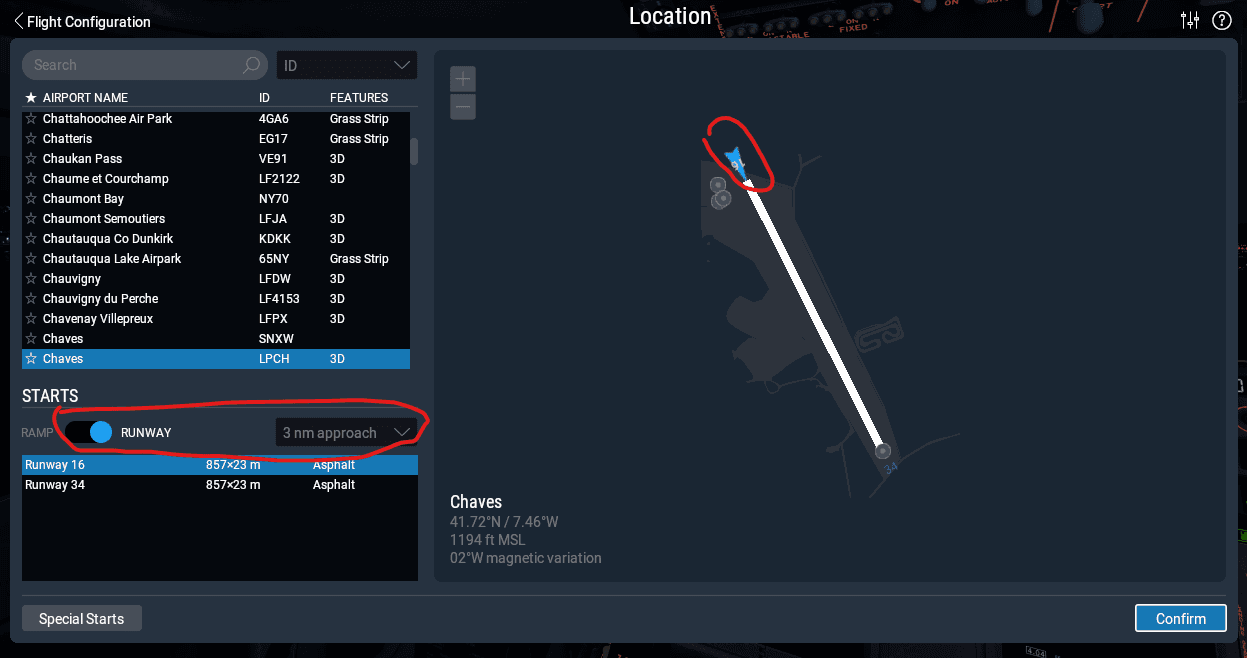
- Start X-Plane 11 or X-Plane 12 and load the CA320 tailsitter model. Because this airframe has no landing gear, start with the engine already running and use a runway start with a 3- or 10-mile approach.
- After X-Plane finishes loading, press P to pause the simulator.
- Go back to Mission Planner, open SIMULATION, set Model = xplane, and click Plane.
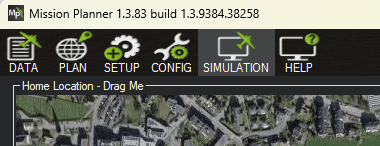
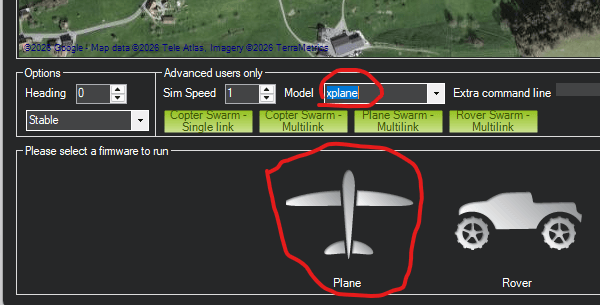
- It should now look like this and be connected.
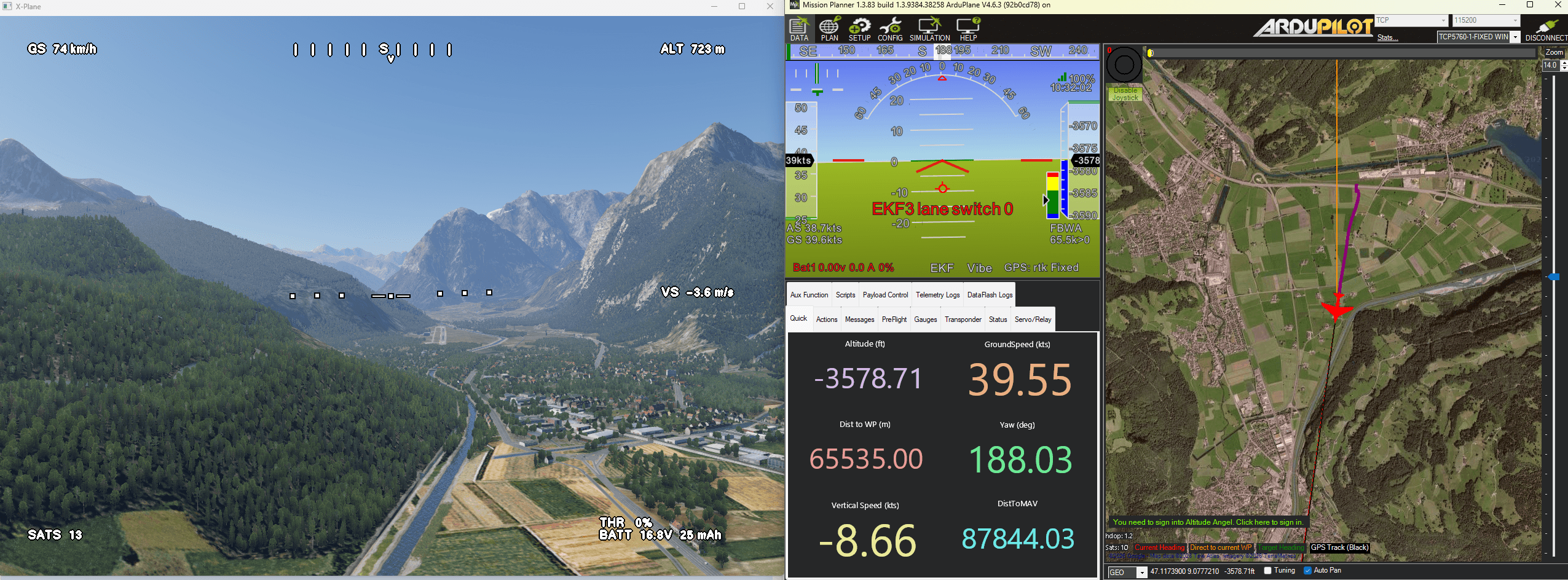
- When connected, open Action -> Joystick and map your controller axes.
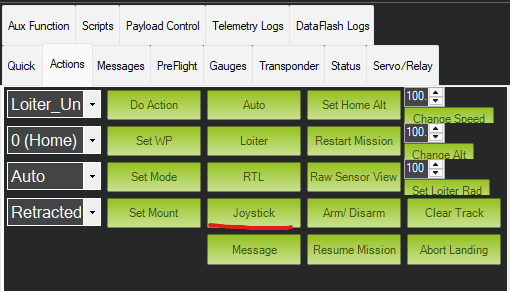
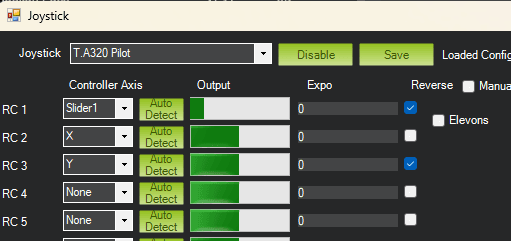
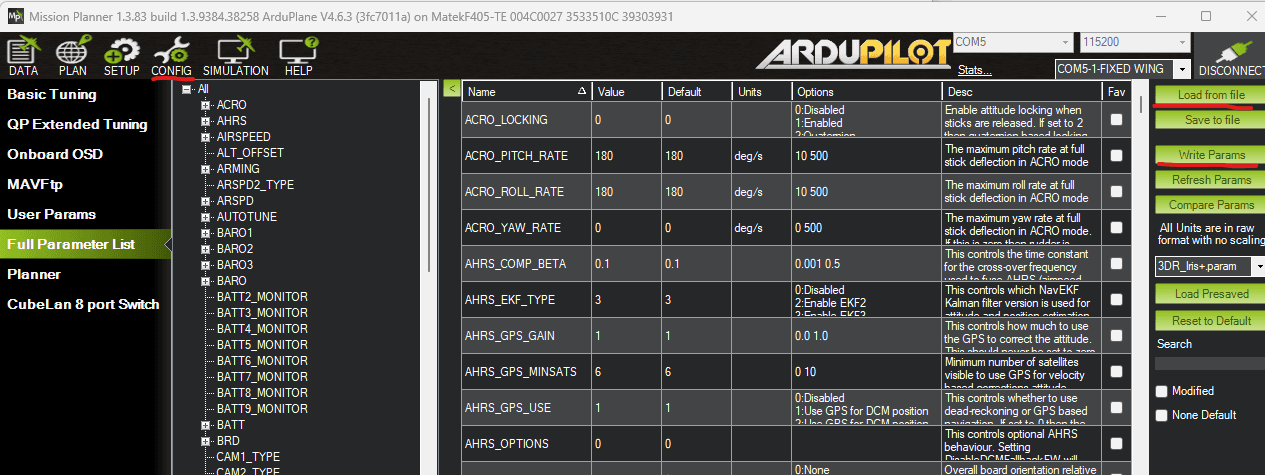
- Open Config -> Full Parameter List, choose Load from file, then Write Params and confirm.
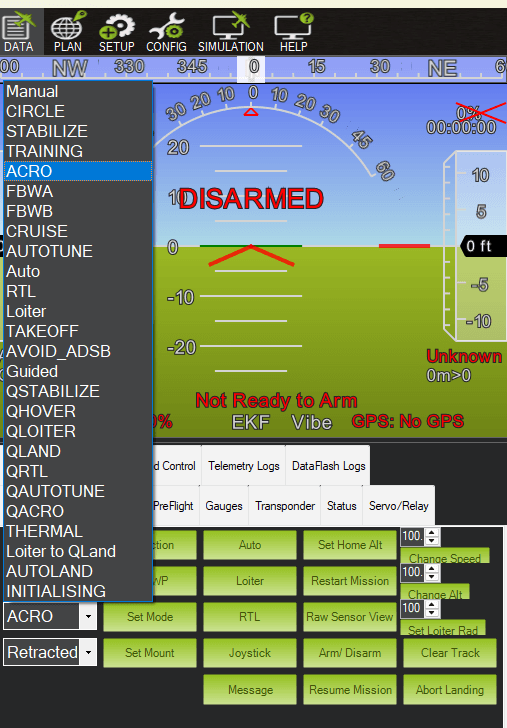
- Select your flight mode (recommended: ACRO), click Arm, return to X-Plane, press P again to unpause, and start flying.
Troubleshooting Notes
- No movement in X-Plane: make sure you unpause the simulator with P after arming.
- No connection in Mission Planner: verify the SIMULATION tab is set to Model = xplane and that Plane was started.
- Wrong control behavior: re-check joystick axis mapping, reversals, and mode/channel assignment.
- Cannot arm: check EKF/GPS readiness and confirm your current mode and safety checks.
- Unstable rates at some airports: altitude, terrain, and start conditions can change tuning quality. Run an autotune pass when needed for better response.